Magnific - AI Video & Image
- 3.9
- Rating
- 1.00M
- Installs
- Free
- Price

 Analysis by App-foxy
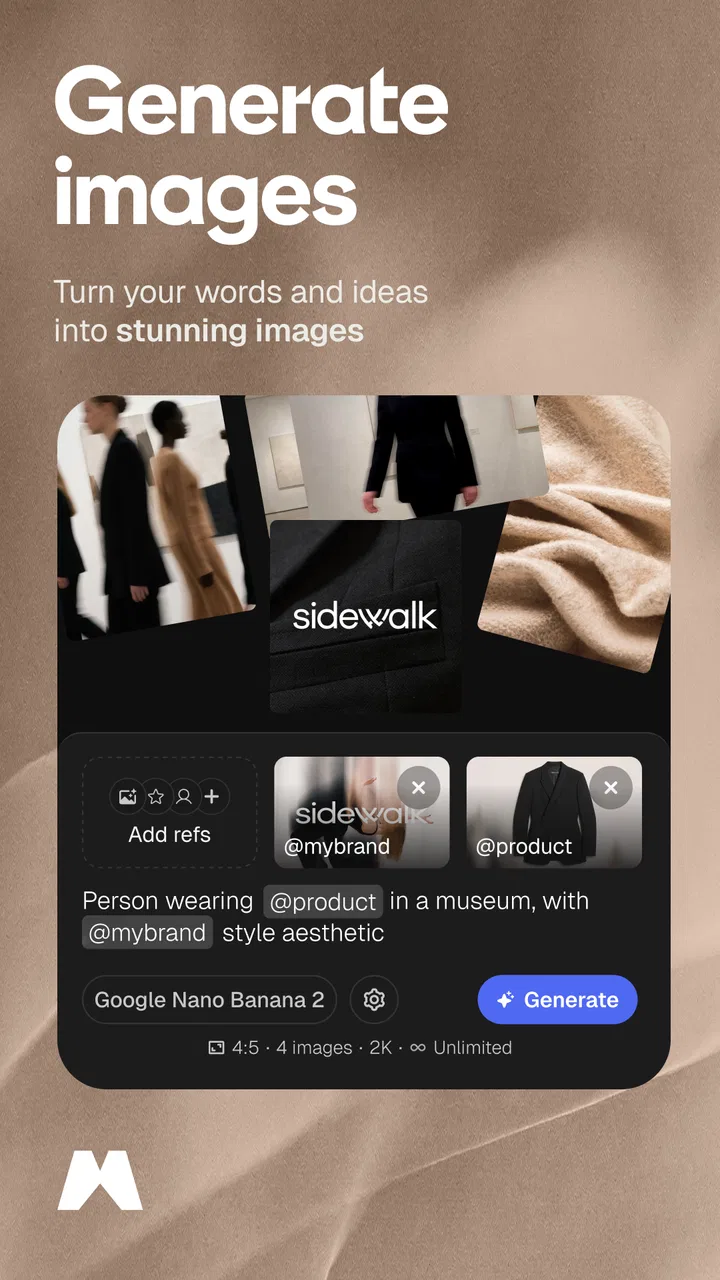
I approached Magnific as a practical creative tool rather than a magic button. It is an Art & Design app from Freepik Company that brings AI image creation, video creation, and photo editing into the same mobile workspace. That combination is useful when I want to move quickly from an idea to something presentable, especially when I am working from a phone and do not want to switch between several separate apps.
The first thing I noticed is that the app makes sense for users who value experimentation. I can start with a rough visual idea, adjust it, and keep refining the result instead of building every element manually from the beginning. At the same time, it is not a replacement for careful design judgment. AI-generated results still need checking, and the quality of the final piece depends heavily on how clearly I describe what I want and how patiently I review the output.
It is free to install, with optional in-app purchases ranging from around thirteen dollars to nearly five hundred dollars per item. That makes it easy to test, but it also means I would not begin a serious workflow without first understanding which actions may require payment. The app carries a Mature 17+ content rating, so it is aimed at an adult audience rather than children.
You May Also Like

 Blood Strike: 2.5 Anniversary
Blood Strike’s Loadouts Turn Every Drop Into a Tactical Gamble
A close look at Blood Strike’s custom loadouts: how fast access to signature weapons reshapes its battle royale rhythm, rewards preparation, and narrows the gap between fights.

 Pandora - Music & Podcasts
Pandora’s Music Is Easy to Start, but Harder to Recover
Pandora’s strength is its low-effort path from a seed to a station. Its weak spot is how much confidence it asks you to place in connection, setup, and quiet recovery.

 8 Ball Pool
 Is Built on Rivalries, Rematches, and Routine
A close look at the rivalries, rematches, shared routines, and unanswered safety questions that turn a quick pool match into a persistent mobile community.

 Samsung Music
’s Quiet Strength Is Playing What You Already Own
Its reach comes less from spectacle than from dependable access to a personal library. That simplicity is both the app’s strongest retention engine and its ceiling.

 AccuWeather: Weather Radar
AccuWeather Review: A Quick, Clear Forecast for Everyday Decisions
For everyday plans, the best forecast is the one you can understand quickly. AccuWeather makes rain timing, radar, and local conditions easy to act on, with a few trade-offs.

 Hill Climb Racing
Why Hill Climb Racing Still Turns Crashes Into One More Run
A tiny car, a bumpy hill and one more upgrade: Hill Climb Racing keeps resurfacing because its simple chaos makes every near-miss feel personal.
More From Our News Desk



How I use Magnific from a rough idea to a finished visual
I start by deciding what the finished visual needs to do, then choose whether to build from a new image, a photo, or a video idea. That small decision keeps experimentation from turning into aimless tapping. I’ll explain how I shape a request so the first result is easier to judge, and why I leave room for a separate finishing step when precision matters.
A practical starting workflow
My most reliable approach is to begin with a specific task instead of opening the app simply to browse. For example, if I need a social post for a small event, I first decide whether the priority is a new image, a short video, or an edit to a photo I already have. That decision keeps the session focused and prevents me from spending time trying unrelated creative directions.
For a new image, I describe the subject, setting, mood, lighting, and intended composition in plain language. I find that a short but structured description works better than a long paragraph filled with vague adjectives. I might identify the main subject first, then the environment, then the visual style and the space I need to leave for text. That last detail matters when the image will become a poster or announcement rather than a standalone picture.
When editing an existing photo, I treat the original as a starting point rather than assuming the app will preserve every detail perfectly. I check faces, hands, small objects, signs, and areas with fine texture after each important change. Those are the places where an attractive overall result can still contain distracting mistakes.
For video work, I keep the first attempt simple. I prefer a clear subject and a restrained visual idea instead of asking for too many movements or transformations at once. A short concept is easier to judge, and it gives me a better basis for deciding whether the problem comes from the prompt, the source material, or the app’s interpretation.
The most useful habit is to review the result at full size before sharing it. A thumbnail can hide warped lettering, uneven edges, or a face that looks acceptable from a distance but unnatural when enlarged. I also compare the output with the original brief. A visually impressive image is not successful if it misses the actual purpose of the project.
What I check before spending time on refinement
I make an early decision about the visual elements that must remain stable. If I am editing a product photo, the product shape and color matter more than an elaborate background. If I am creating a profile image, the face and expression take priority over decorative effects. This simple ranking helps me reject attractive but unsuitable variations quickly.
I also keep a clean original copy of any photo I edit. AI-based changes can move a picture in a direction that is difficult to reverse creatively, even when the app allows another attempt. Working from the untouched image gives me a dependable reset point and makes side-by-side comparison much easier.
Another useful practice is to change one major idea at a time. If I alter the subject, lighting, composition, and style in a single attempt, I cannot tell which instruction improved the result. By changing only one part, I learn what the app responds to and can build a more repeatable process.
Settings and choices worth checking
Before I commit to a final result, I look for the choices that affect the intended use: the type of output, the visual direction, and how much transformation I actually want. A light edit is usually more appropriate for a personal photograph, while a stronger transformation may suit a concept image or promotional artwork. The right choice depends less on what looks most dramatic and more on whether the result still serves its purpose.
I pay particular attention to composition. If I know an image will appear beside a headline, I leave visual breathing room rather than filling every part of the frame with detail. If the image is meant for a square social post, I plan around the central area and check whether important features remain visible after cropping. This is a practical difference between generating a nice picture and generating one that can actually be used.
For video, I think about movement before style. A highly stylized result with awkward motion is less useful than a simpler clip with a clear focal point. I also avoid making the prompt carry several competing instructions. When I want a calm, polished result, I describe the movement and atmosphere directly instead of piling on unrelated effects.
Because the app includes both creation and editing, I use it in stages. I might create a broad visual direction first, then use an editing step to correct the mood or emphasize the subject. This is more controlled than expecting one request to deliver the exact composition, color treatment, and finishing touches simultaneously.
Users should also keep the commercial context in mind. The app is free to start, but optional purchases can become significant depending on how heavily someone uses it. I would test the workflow with a small personal project before relying on it for frequent client work. That is not a criticism of the creative tools themselves; it is simply a sensible way to understand the cost of a repeatable process.
Faster patterns that save me from starting over
My fastest workflow is based on reusable thinking, not on rushing through every screen. I keep a small set of prompt patterns for common jobs: a clean product scene, a portrait with controlled lighting, a background replacement, and a short visual concept for social media. I do not copy them blindly. I replace the subject, setting, mood, and composition each time, but the structure helps me avoid forgetting important details.
Another efficient pattern is to create several variations around one clear concept and then refine only the strongest direction. Trying to perfect the first output can waste time because the initial composition may be wrong at a basic level. I would rather compare a few different interpretations, select the one with the best structure, and spend my attention correcting smaller problems afterward.
For everyday use, this works well in a realistic scenario. Imagine I need an announcement for a community workshop while commuting. I could begin with a simple visual concept, reserve empty space for the event details, and then make the final text layout in a dedicated design tool if the lettering needs to be exact. Magnific would handle the visual foundation, while the other tool would handle precise typography. That combination is often more dependable than asking an AI image generator to produce a finished poster with perfect words.
I also separate exploration from delivery. During exploration, I accept unusual results because they may suggest a better direction. During delivery, I become much stricter: the subject must be recognizable, the framing must fit the platform, and the image must not contain details that could confuse viewers. Keeping those phases separate prevents me from mistaking novelty for quality.
A less obvious advantage of having image, video, and photo editing in one app is continuity of experimentation. I can use the same creative idea in different formats without changing my entire working environment. That is especially helpful for a small campaign where I need a still image first and a related moving version later. The trade-off is that a specialized video editor or professional photo editor will usually offer deeper manual control.
Where the app needs supervision
The biggest limitation is not the number of creative possibilities; it is consistency. AI can produce a strong first impression while getting small but important details wrong. Text is a common concern, and I would never assume that a generated label, date, logo, or instruction is ready for publication without checking it closely. For exact wording, I prefer to add the text separately.
Consistency across multiple images can also require extra work. If I need the same person, object, or visual identity to appear repeatedly, I inspect each result rather than assuming the appearance will remain identical. This matters for storyboards, product series, and branded content. The app can help with ideas and variations, but a strict visual system may still be easier to maintain in a conventional design workflow.
Photo editing has a similar trade-off. Strong transformations can be useful when the goal is creative reinterpretation, but they may be unsuitable when accuracy matters. A property listing, an item for sale, or a documentary photograph should not be treated like an abstract artwork. In those situations, I would choose a conventional editor with precise, visible adjustments and use AI only where the intended result allows interpretation.
Video creation brings another boundary: a concept can be easy to imagine but difficult to control precisely. If I need exact timing, detailed cuts, synchronized audio, or frame-by-frame corrections, I would move to a dedicated editor. Magnific is more appealing for generating or exploring visual ideas than for replacing a full production timeline.
The mobile format is convenient, but it can make detailed inspection less comfortable than working on a larger screen. I can start an idea on a phone, yet I still want a careful review before delivery, particularly when the image contains small objects or fine typography. Convenience is one of the app’s strengths, but it should not become an excuse to skip quality control.
Who will get the most from it
I think Magnific is a good fit for social media creators, small business owners, students, hobby artists, and anyone who regularly needs visual starting points. It is particularly useful for people who know what they want to communicate but do not have the time or technical skill to build every image manually. The app lowers the barrier between an idea and a usable draft.
It can also help experienced designers during the early stages of a project. Instead of treating the output as the final asset, they can use it for mood exploration, rough concepts, alternate compositions, or visual references. In that role, the app becomes a fast sketchbook with image and video capabilities rather than a complete replacement for professional software.
I would be more cautious about recommending it to someone who needs exact brand control, dependable typography, detailed retouching, or a fully manual workflow. A traditional photo editor is better when every adjustment must be deliberate and traceable. A dedicated layout tool is better for documents where text alignment and spacing are central. A professional video editor is better when timing and sequencing matter more than rapid visual experimentation.
The age rating also makes it unsuitable as a casual children’s creativity app. Adults should be responsible for deciding how generated material is used and for reviewing it before it is shown publicly. The app’s broad creative scope makes that judgment especially important.
How it compares with the usual alternatives
Compared with a standard photo editor, Magnific is faster at suggesting or transforming a visual direction, but it gives me less confidence that every detail will remain exactly where I placed it. Conventional editors win when precision, repeatability, and controlled retouching are the main goals.
Compared with a dedicated design platform, it is more focused on generating visual material than on arranging a complete page with dependable typography, grids, and brand assets. I would use Magnific to create an image or concept, then move to a layout tool when the project needs polished text and structured composition.
Compared with a specialist video editor, it offers a simpler route into AI-assisted visual creation, but it is not the tool I would choose for a complex edit. The best comparison is not “which app replaces everything?” but “which part of the job should this app handle?” For ideation, variations, and quick visual experiments, it has a clear role. For final precision, other tools remain stronger.
My verdict after building a repeatable routine
Magnific works best when I give it a defined job, use prompts with a clear structure, and treat every output as a draft that deserves inspection. Its appeal comes from bringing image creation, video creation, and photo editing together, which makes it easy to move from an idea to a visual experiment without collecting several separate apps.
The app has attracted over a million installs and holds an average rating of about 3.9 from roughly fourteen thousand ratings, which suggests broad interest alongside a mixed experience. I understand that balance. The creative speed is genuinely useful, but the results are not automatically production-ready, and the optional purchase range makes heavy use something I would evaluate carefully.
The current version is 6.2.1 and it runs on Android starting with version 8.0, so it is accessible to many existing devices. Still, compatibility alone does not determine whether it belongs in your workflow. If you want fast concepts, unusual visual variations, and a convenient mobile starting point, I think it is worth trying. If you need exact edits, stable character continuity, flawless text, or professional timeline control, I would pair it with—or choose instead—a more specialized tool.
My recommendation is simple: use Magnific as a creative accelerator, not as an automatic final editor. Start with one small project, compare several directions, check the important details at full size, and only then decide whether its workflow justifies regular use. For me, that habit turns the app from a novelty into a useful part of the creative process.
FAQs for Magnific - AI Video & Image
01What is Magnific - AI Video & Image used for?
Magnific - AI Video & Image is an artificial intelligence enhancement and generation tool designed to improve photos, artwork, and video-related content. It can help increase apparent detail, sharpen soft images, upscale low-resolution visuals, and create more polished results from ordinary media. It may be useful for creators, photographers, designers, social media users, and anyone who wants to enhance visual content without advanced editing skills.
02Does Magnific - AI Video & Image work on both Android and iOS devices?
Availability can depend on the official release and the user’s region, so it is important to check the current Google Play Store or Apple App Store listing before downloading. Users should also confirm the supported operating-system version, device requirements, and whether the app offers the same features on Android and iOS. Some AI processing may require a stable internet connection rather than working entirely offline.
03Is Magnific - AI Video & Image free to download and use?
The application may be free to install while restricting some tools, export options, processing credits, or higher-quality results behind in-app purchases or a subscription. Before starting a trial, carefully review the pricing page, renewal terms, available credits, and cancellation policy. AI enhancement can also consume credits quickly, particularly when processing large images, multiple variations, or video content.
04Can Magnific - AI Video & Image improve any photo or video perfectly?
No AI enhancer can restore information that was never captured with complete accuracy. Magnific may produce impressive results with suitable source material, but extremely blurry, compressed, dark, or damaged files can lead to artificial textures, incorrect facial details, or invented elements. It is best to compare the enhanced output with the original and adjust the prompt or settings rather than assuming every result will be realistic.
05What privacy and safety issues should users consider before uploading media?
Before uploading personal photographs, client projects, identification documents, or private videos, users should read the app’s privacy policy and terms of service. Check how files are stored, whether they may be used to improve AI systems, how long they are retained, and whether deletion is available. Avoid uploading sensitive material unless you understand the provider’s data practices and are comfortable with the permissions requested.
Pros
- Turns ordinary photos into sharper
- more detailed AI-enhanced images.
- Supports creative image and video transformations with minimal editing skills.
- Cloud-based processing avoids requiring a powerful phone or computer.
- Useful presets can speed up common enhancement and upscaling tasks.
- Results can be suitable for social media
- thumbnails
- and creative projects.
Cons
- High-quality generations may consume credits quickly.
- Processing times can vary when servers are busy.
- Some results may include artifacts or unnatural facial details.
- Advanced controls may feel overwhelming for first-time users.
- An internet connection is required for most AI processing features.

Magnific - AI Video & Image
Gallery